
 Airfoil
 Audio Hijack
 Farrago
 Fission
 Loopback
 Piezo
Piezo
 SoundSource
Copyright © Rogue Amoeba Software, Inc. All rights reserved.


SoundSource provides several ways to mute your microphone, so its input isn’t heard by other apps on your Mac.
1. Click the  SoundSource icon in the menu bar to display SoundSource.
2. Click the  Mute button next to Input, in the System section.
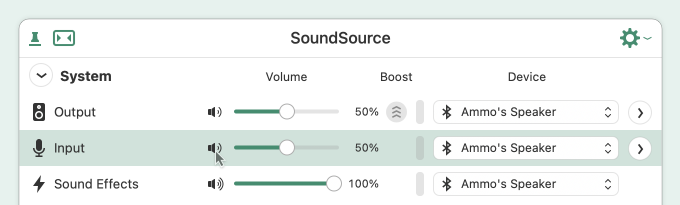
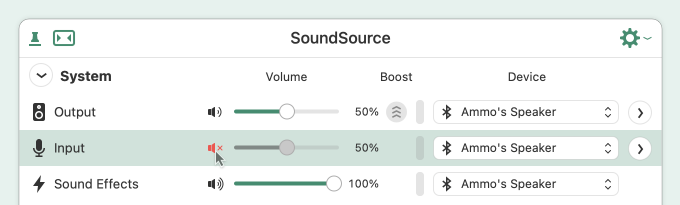
Two clicks is good, but it’s possible to mute your microphone with a single click, using the optional Menu Bar Meters.
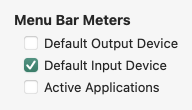
In the Appearance tab of SoundSource’s Settings (Preferences on MacOS 12 or lower), turn on the Default Input Device menu bar meters.
You’ll now see a  microphone and meter icon in upper-right of the menu bar, near the clock. Click anywhere on this visual to mute all input from your microphone. The icon’s level meter will now be X’ed out, to indicate the device is fully muted.


Muting your microphone input is also possible using a rapid 1-2-3 combination of keyboard shortcuts:
1. Press a configured Global Hotkey to display SoundSource.
2. Press Command-Hyphen (-) to select your microphone.
3. Press Shift-Command-↓ (Down arrow) to mute the microphone’s input.
On MacOS 12 and up, it’s also possible to use Shortcuts workflows with SoundSource to mute devices, with the Set Device Mute action. See the Shortcuts page of the SoundSource manual for more details.

If you need personal assistance or want to provide feedback, our friendly support team is available via email. Click below to get in touch:
Contact UsWe're amazingly responsive! We strive to reply in under 24 hours.